Before using a converted image: check format, transparency and dimensions
Use a downloadable transparent test image to check a real PNG, JPEG or PDF export, spot unsupported AVIF encoding and avoid downloading an outdated result.
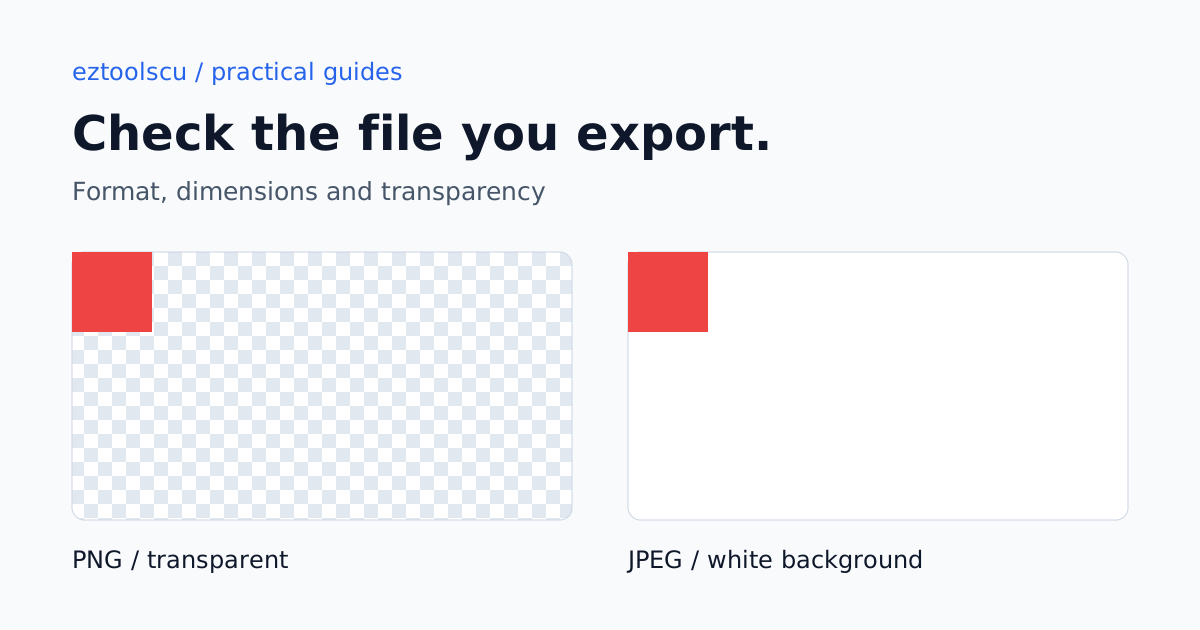
A file that downloads successfully can still be the wrong choice for its destination. A logo may lose transparency, a rotated image may have unexpected dimensions, or a new quality setting may require another conversion. This guide uses a deliberately simple image so those differences are easy to inspect.
Start with a predictable sample
Open our transparent PNG sample and save the image. It is 240 × 120 pixels, with a red 20 × 20 square at the upper left. The remaining area is transparent. Some image viewers display transparent areas on white, so a white-looking preview alone is not proof that transparency has been removed.

Keep the source separate and record the settings for each export. The checks below describe our browser tools; other image editors may use different backgrounds or settings.
Check PNG and JPEG side by side
- Open Image Converter and add the sample.
- Leave its dimensions at 240 × 120 and rotation at 0°. Choose PNG, run the conversion and download the result.
- Repeat with JPG. After changing the format, run the conversion again; an earlier export is not an updated result.
- Open both files in an editor that displays a transparency checkerboard, or place them over a coloured slide background.
The PNG should keep the transparent area. Our JPG export fills that area with white because JPEG cannot retain an alpha channel. This is an intentional background choice in this tool, not a rule that every JPEG converter uses white. If you need a transparent logo, use an appropriate transparent format rather than renaming the JPEG file.
Verify a rotation using pixel dimensions
Use the same sample in Image Converter. Select JPG, choose 90° rotation and convert again. The downloaded image should be 120 × 240 pixels: a quarter turn swaps width and height. Check the file information in your image viewer instead of judging only the size of the preview on the page.
A result that remains 240 × 120 could be an older download or an export made with rotation at 0°. Use a fresh filename or a separate folder to avoid comparing the wrong copies. The tool hides its previous download button when relevant settings change, but files already saved on your computer remain there.
Understand an unsupported AVIF export
A browser's ability to display AVIF does not necessarily mean its canvas encoder can create AVIF. The canvas export API can fall back to PNG for an unsupported requested format. Our converter checks the resulting MIME type and shows an error instead of giving that fallback a misleading .avif filename. MDN documents this export behaviour.
If you see that error, choose PNG, JPG or WebP and run the conversion again. Changing the extension of a PNG does not turn its contents into AVIF.
Compare compression without assuming smaller is always possible
Open Image Compressor, upload the original and export JPEG or WebP at your chosen quality. Compare the downloaded file size with the source. This tiny sample can become larger because the source is already simple. A negative savings percentage means the export is larger; it is not a promise that a higher or lower quality setting will reach a particular size.
For a photograph, also check faces, small text and edges at the intended display size. Keep the original when another encoding offers no useful improvement.
Check PDF output and recover from errors
Image Converter can place an image into a PDF. Select PDF, convert and download; open it in a PDF viewer and confirm that it contains the expected image. A PDF extension alone is not a visual check. Use PDF / Image Converter when you need page selection or a multi-image document workflow.
If an upload is damaged, the tool should show an error and let you choose another file rather than leaving a permanent spinner. These two image tools limit canvas processing to 40 megapixels and 16,384 pixels per side. HEIC decoding and AVIF encoding also depend on supported browser/library behaviour; animated images, metadata and original colour profiles are not archival-preservation promises.
The fixture checks used for this guide cover transparent PNG, JPEG background pixels, a 90° rotation, a PDF file signature and a simulated unsupported AVIF encoder. They do not establish compatibility with every camera file, Safari/Firefox version or print workflow.
References and related reading
- MDN: canvas toBlob and unsupported output types
- MDN: image formats and transparency
- Resize and compress a website image for choosing dimensions and comparing quality on a photograph.